ElitePC NJ · Garfield & North Jersey
Virus & Malware Removal for Laptops & Desktops
Unexpected pop-ups, browser changes or unwanted programs? ElitePC helps find the cause and remove unwanted software from laptops and desktops. We explain the cleanup options and what they mean for your computer and files.
- Browser and Unwanted Software Cleanup
- Clear Cleanup Recommendations
- Your Files Considered Before Major Changes
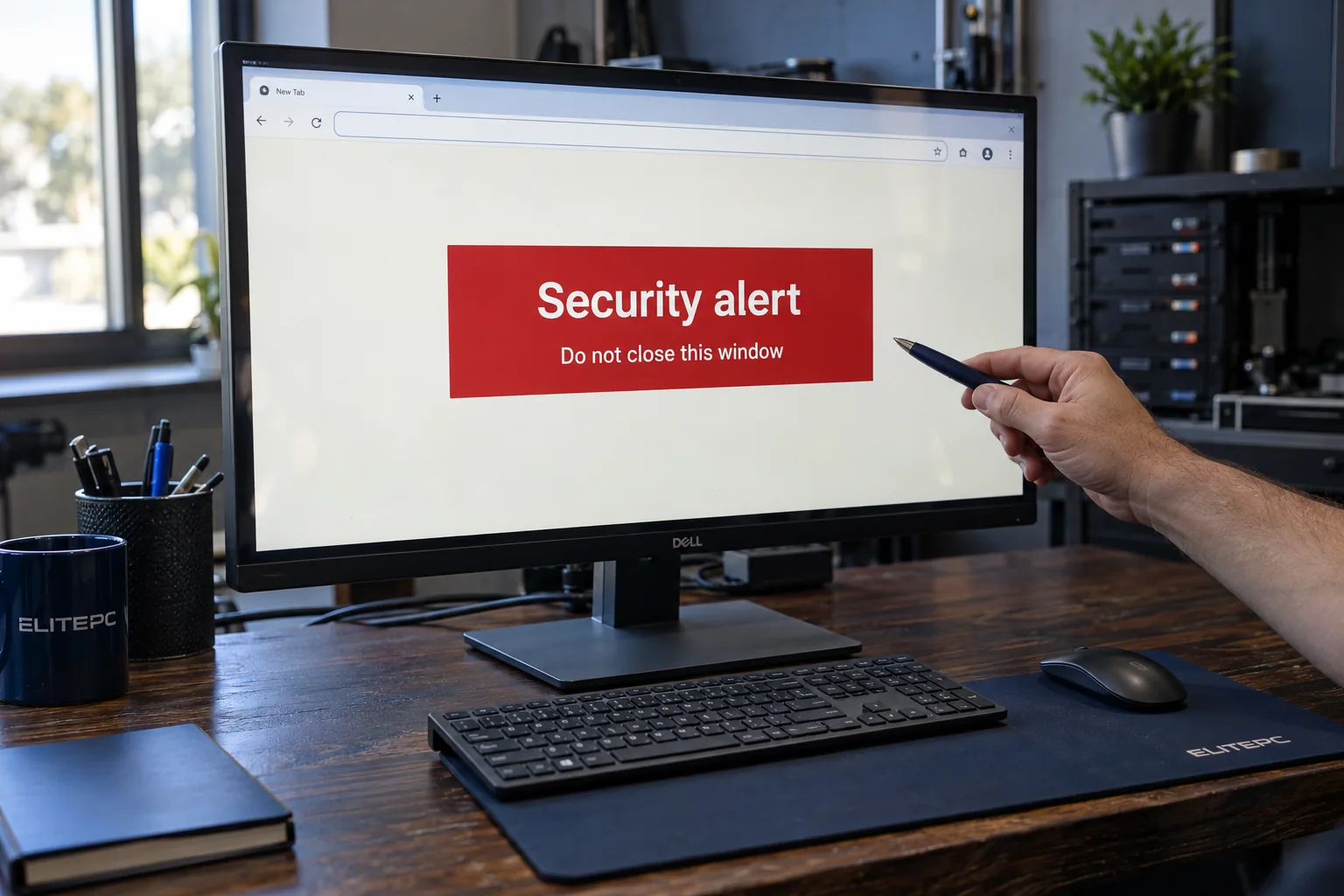
Suspicious browser alerts can look like system warnings.
Suspicious browser alerts can look like system warnings.
A warning is not a diagnosis. Do not call its number or install its suggested tool. Seek help through contact details you know are genuine.
Help With Suspicious Pop-Ups and Unwanted Software
Repeated pop-ups, redirected searches or unwanted programs can make a computer difficult to trust. We assess browser changes and possible malware, including adware or spyware, and explain the cleanup options. Slowness alone does not confirm an infection.
Problems We Can Assess
On a webpage
Alarming Pop-Ups or Notifications
We check where the alert comes from and whether the browser or computer needs cleanup. A message that asks you to call, pay or download a tool does not prove that your computer is infected.
On the computer
Browser or App Changes Keep Returning
Extensions that return, redirected searches and unwanted programs deserve a closer look when uninstalling has not helped. ElitePC investigates the recurring behavior and recommends the next step.
Beyond the computer
You Shared Access or Account Details
If someone connected remotely or obtained account details, we can assess the computer. Account and payment concerns may also need the provider's help.
Not Sure What Happened?
You do not need to identify the malware before contacting ElitePC. A brief description of what appeared and what happened next helps us assess the request.
Use our contact page rather than a number promoted by an alarming message. Keep passwords, private files and sensitive screenshots out of the request.
A Website Notification Is Not a Virus Diagnosis
Not every security-looking alert is an infection. Website notifications can appear even when Microsoft Edge is closed. ElitePC can assess browser permissions and unwanted software before recommending suitable cleanup.
Was Your Computer Hacked?
Unexpected activity can be a warning sign, but it does not always mean someone has access. Hardware faults, legitimate updates and authorized support sessions can look similar. If you suspect unauthorized access, stop using the computer and take the steps below.
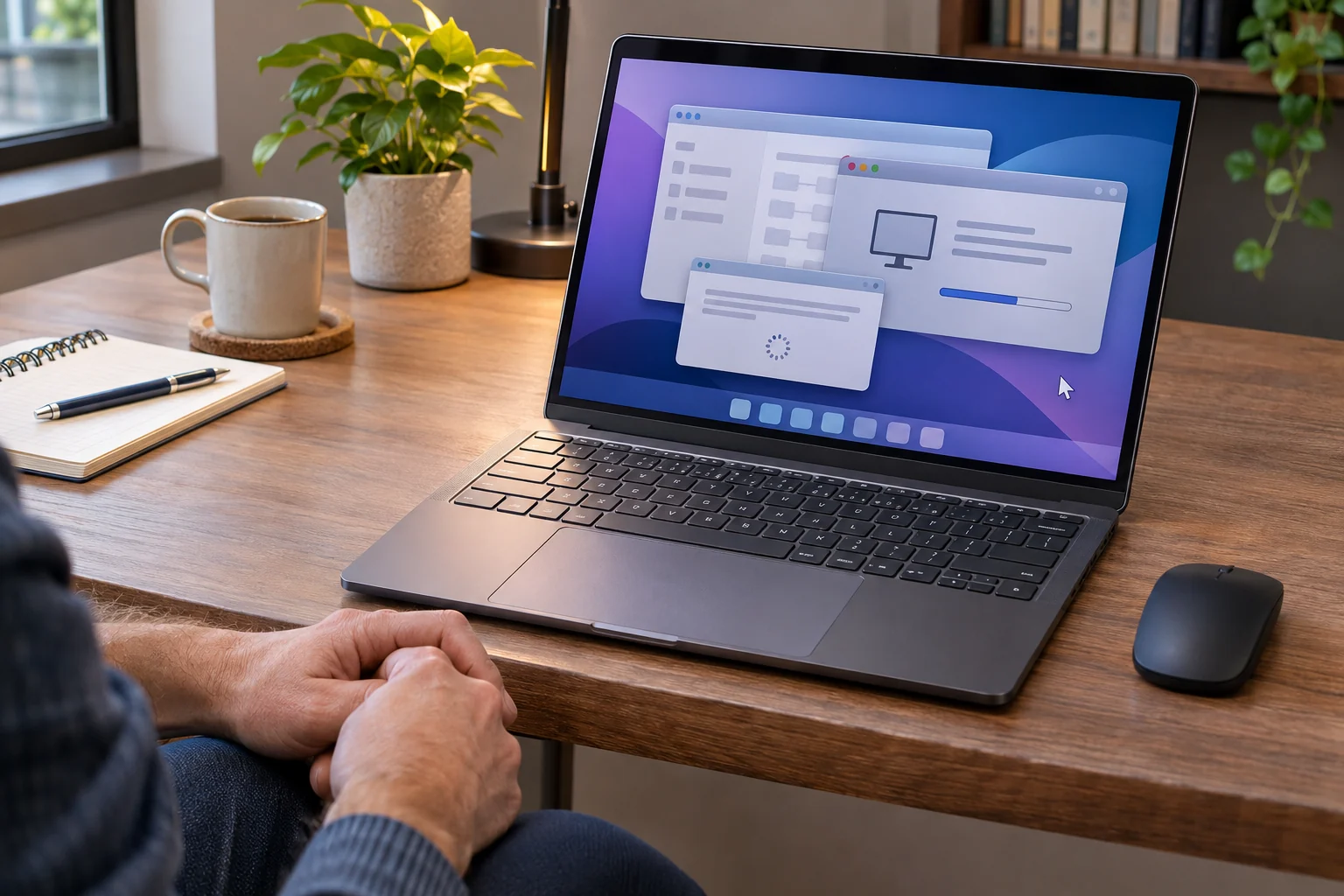
Warning signs to take seriously
- The mouse pointer moves or clicks while you are not touching it.
- Windows or applications open and close without your input.
- An unexpected “updating” or “do not turn off” screen appears, then disappears without a normal restart.
- Unfamiliar remote-access software, changed security settings or antivirus protection switched off.
- Login alerts, password-reset notices or messages sent from your accounts that you do not recognize.
- Files unexpectedly disappear, become renamed or encrypted, or a ransom message appears.
What to do right away
1. Disconnect and leave it offline.
Unplug Ethernet and turn off Wi-Fi, or shut the computer down completely. Do not reconnect it or turn it back on until ElitePC has assessed it and advised you on safe use.
2. Call ElitePC promptly.
Use a separate phone or device to explain what you noticed. Do not follow instructions, call numbers or install tools shown in unexpected pop-ups.
3. Secure important accounts from another trusted device.
Change passwords, starting with email, banking and financial accounts, then any account with a saved credit card or payment method. Use a unique password for each.
4. Enable two-factor authentication.
Turn on 2FA for email, financial, payment-linked and other important accounts. Review recovery details and sign out unfamiliar sessions where available.
5. Watch for fraudulent activity.
Check financial and payment-account activity. Contact the provider promptly about transactions or changes you do not recognize.
Malware Assessment and Cleanup at ElitePC
Browser cleanup, unwanted-software removal and Windows reinstallation address different problems. We explain the recommended work and any risks to files or applications before you decide whether to go ahead.
01
Understand the Problem
We review the unwanted behavior, recent downloads or remote access, and any cleanup already attempted. Your important files, available backups and any employer-managed access help us decide what to check and which changes are appropriate.
02
Assess and Clean Up the Computer
Depending on the problem, cleanup can involve:
- Addressing unwanted browser permissions and extensions
- Removing unwanted apps
- Checking system behavior with trusted security tools
If cleanup is not suitable, we explain the alternatives. Security checks help assess the result, but no scan can guarantee that every threat has been found.
03
Understand the Result and Next Step
We explain what changed, what was checked and anything that still needs attention. If files or accounts were affected, those concerns need attention beyond the computer cleanup.
Reduce the Risk of Another Problem
We explain practical ways to reduce the chance of another problem, including:
- Software updates and security tools
- Unique passwords and multifactor authentication
- Usable backups kept separate from everyday access
- Safer download habits
Ask about any further setup or repair you need. Cleanup does not provide permanent protection.
Your Files, Backups and Reinstallation
We discuss important files, usable backups and required applications before a reset or reinstall. Removing malware, recovering affected data and rebuilding Windows are separate decisions.
Different Work for Different Problems
Malware Cleanup
Address unwanted software or browser changes. Account recovery and file recovery are separate.
File Recovery
Assess affected data and usable backups. Removing ransomware does not decrypt encrypted files.
Windows Reinstallation
Rebuild Windows when appropriate, with the possible loss of apps, settings and files explained beforehand.
The right choice depends on the computer's condition and the files and applications you need to keep.
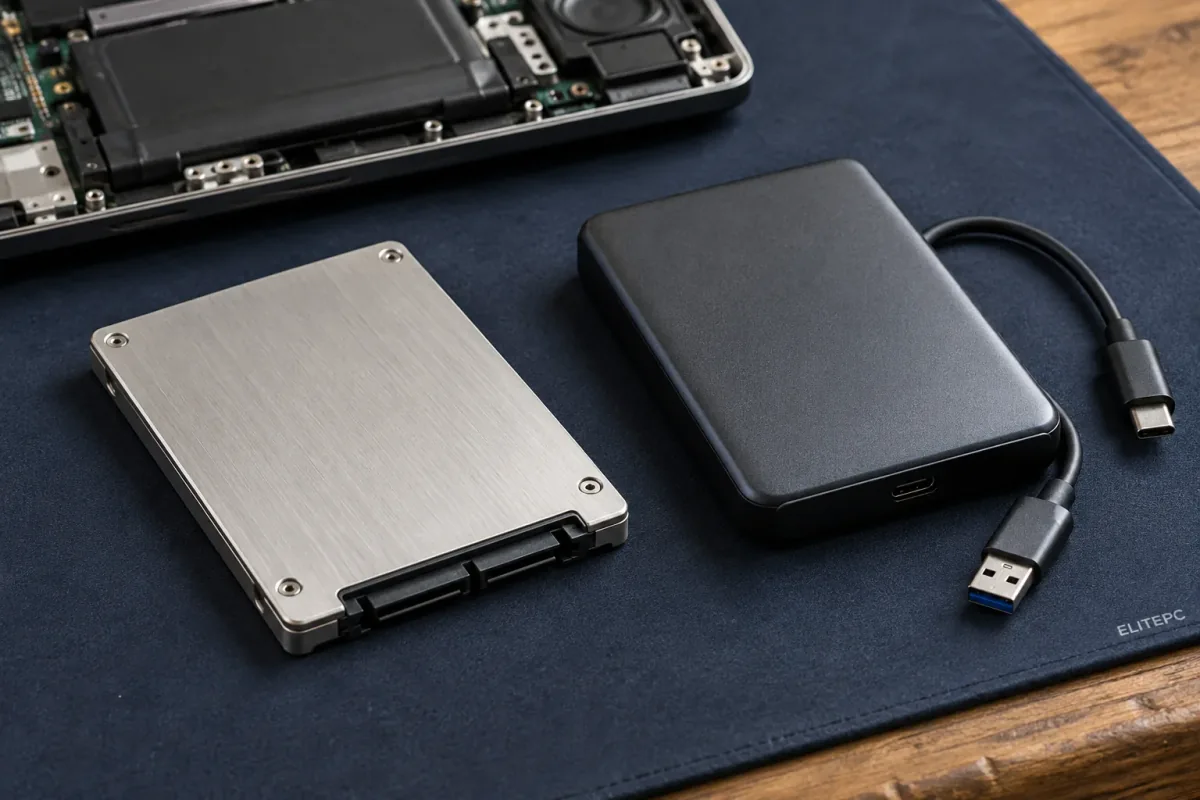
A usable, clean backup may help restore files without relying on the affected computer.
If You See a Ransom Note or Encrypted Files
Protecting recovery options comes first:
- Stop ordinary use and disconnect the computer from Wi-Fi and network cables. Keep backup drives disconnected; do not connect them to the affected computer.
- Pause cleanup, reset or reinstall attempts until file priorities are assessed.
- Use a different trusted device to seek help. For a work computer, notify your IT contact and follow its incident instructions.
Malware Removal Does Not Decrypt Files
Removing ransomware and recovering the files it encrypted are separate tasks. A usable clean backup may help, but recovery is not guaranteed. Paying a ransom does not guarantee access to your files either.
Before a Reset or Reinstall
Windows reset and reinstall options have different effects. Even “Keep my files” removes apps and settings. Other options can remove personal files too.
Before a reset or reinstall, we discuss the files and apps you need, available backups and what could be removed. You decide whether to go ahead.
Keep passwords and recovery keys out of the public form. Any access needed for the work is arranged directly with you.
When Accounts or Work Computers Are Affected
Cleaning the computer does not restore a compromised online account or reverse a payment. Those concerns need the account or payment provider's help.
Use a different trusted device and the provider's official support route, not details supplied by a suspicious caller.
For an employer-managed computer, involve your IT contact before arranging changes. Shared accounts, several affected devices or business data need a coordinated response.
This service covers an individual laptop or desktop. It does not include website cleanup, business email filtering or organization-wide incident response.
Who Handles Each Concern
The Computer
ElitePC assesses the affected laptop or desktop and recommends cleanup or recovery options.
Your Accounts
Account access recovery and payment concerns need the relevant provider.
A Workplace
The employer's IT contact coordinates changes involving managed devices or shared systems.

Support Beyond a Basic Virus Scan
Cleanup can involve the unwanted software itself, browser behavior and practical steps to reduce the risk of another problem.
Scanning and threat detection
Check for viruses, malware, spyware and other unwanted software.
Pop-up and adware cleanup
Address intrusive ads and unwanted browser behavior linked to malicious software.
Careful removal choices
Consider your files and the condition of the system before choosing a cleanup approach.
Personal-information protection
Review protective settings and explain when exposed accounts need the provider’s help.
Recovery options for missing files
Discuss separate data recovery when files are affected. Recovery depends on the damage.
Prevention and antivirus guidance
Get practical advice on safer online habits and suitable antivirus protection.
When Another Service Is a Better Fit
Crashes, Slowness or Other Faults
Persistent crashes or unexplained faults may need Computer Diagnostics. A working computer with ordinary startup or app delays may suit a PC Tune-Up.
Can Malware Cleanup Be Done Remotely?
Remote Support may be suitable when the computer's condition allows safe access. Confirm that with ElitePC before connecting. For an employer-managed computer, involve your IT contact first.
The request form is not a live emergency-response channel. Account, payment and workplace concerns also need the relevant provider or IT contact.
Questions About Malware Cleanup
Do I Need to Know Which Malware I Have?
No. Describe the warning or behavior and any recent downloads or remote access. ElitePC assesses whether the concern involves browser permissions, unwanted software or another fault. You do not need to choose a cleanup method before contacting us.
Can You Help If I Let a Scammer Connect?
ElitePC can assess the affected computer and discuss cleanup. Removing the remote-access app alone does not establish what happened during the session. Exposed accounts or payments need the relevant provider, and a work device needs its IT contact.
Can You Help If My Antivirus Finds Nothing?
If pop-ups, browser changes or unwanted software keep returning, ElitePC can assess the concern even when a scan reports no threats. A clean scan is useful information, but it does not resolve every browser setting or exposed account.
Will Malware Cleanup Keep My Files and Apps?
It depends on the work needed and the condition of your data. A reset or reinstall can remove apps, settings or files. We explain the likely impact first, but cannot guarantee that everything can be kept or recovered.
What Affects the Cost of Malware Cleanup?
The cost depends on whether you need browser cleanup, unwanted-software removal or Windows reinstallation. File recovery is separate work. Ask ElitePC for the current price and what it covers before work starts.
Does Malware Removal Include File Recovery?
Not automatically. Cleanup addresses the software or browser problem; file recovery needs a separate assessment. Existing backups may help, but a copy made after an incident may contain affected files or malicious software. Tell us about encrypted or missing files when you contact us.
Garfield · North Jersey
Request Virus or Malware Help in North Jersey
Tell us what appeared, whether anything was installed and whether someone connected remotely. We use those details to discuss the next step, including any file or account concerns.
ElitePC NJ is based in Garfield and serves Bergen County, Passaic County and North Jersey. Visits and drop-offs are by appointment. Confirm arrangements before travelling or granting access.
Useful Details for Your Request
- Computer model and operating system, if known.
- The warning or unwanted behavior you noticed.
- Downloads, remote access or cleanup attempts.
- Important files and available backups.
- Whether the computer is employer-managed or other devices are affected.
Do not send passwords, recovery keys, payment details or private documents.